The best note-taking apps for Mac
Bear, Craft, Drafts, Tot and Apple Notes compared for everyday notes on a Mac: formatting, organisation, sync, privacy and price.

Written by Mac App Index Editorial
For most people the best note-taking app on a Mac is Apple Notes, because it is free, fast and syncs everywhere. If you want Markdown and tags, choose Bear. If you want structured, good-looking documents, choose Craft. For quick capture that you sort later, Drafts is hard to beat.
How we picked: we kept a week of real notes in each app, including meeting notes, lists, links and longer drafts, and judged how fast each was to capture, find and share. Prices and features come from our catalog listings.
Apple Notes: start here
Apple Notes is better than its reputation. It supports tables, checklists, scanned documents, tags, smart folders, shared folders and locked notes, and it syncs through iCloud with no setup. If your notes live mostly on Apple devices and you do not need Markdown, there is little reason to switch.
The reasons people leave are usually export (Notes does not give you plain files easily), formatting control, and wanting the same notes on Windows or Android.
Bear
Bear is a Markdown notes app with nested tags instead of folders. You write with live styling, so headings and bold text look formatted as you type, and you organise with tags like #work/clients. Exports include PDF, HTML and more.
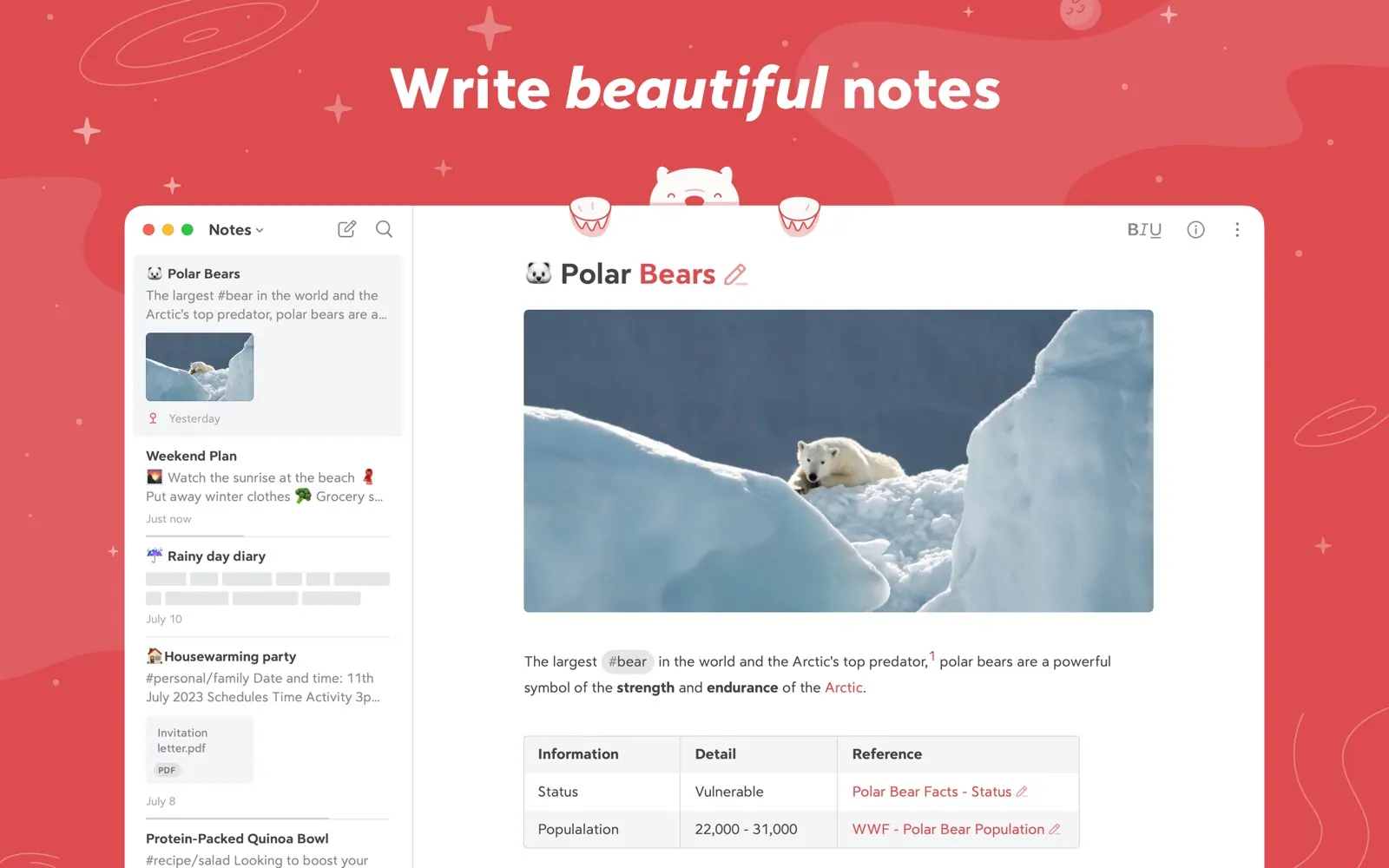
Bear is free on one device. Bear Pro, a subscription, adds iCloud sync between devices, encrypted notes and more export options. It is Apple-only.
Pick Bear if you write in Markdown, like tags, and want an app that feels calm.
Craft
Craft builds documents from blocks. Every paragraph, image or list is a block you can move, nest or turn into a linked page. The result looks designed with very little effort, and you can share any page as a website. An AI assistant is built in.
Craft has a free tier and a subscription for more storage and features. It runs on the web and Windows too, which helps if you share notes with people who are not on a Mac.
Pick Craft if your notes become documents other people read.
Drafts
Drafts opens to a blank page every time. You type, then send the text somewhere with an action: an email, a task, a note in another app, or your own JavaScript script. It is less a notes library and more an inbox for text.
The free version handles capture; Drafts Pro adds customisation and the full automation features. Pick Drafts if you capture a lot of short text and want to decide later where it belongs.
Tot
Tot holds exactly seven notes in the menu bar. It is free on the Mac and works best as a scratchpad next to a real notes app: a phone number during a call, a list you need for the next hour, a snippet you are about to paste.
For thinking visually
MindNode turns notes into a mind map and back into an outline. It is good for planning a project or an article before you write it, and it can export to task apps like Things.
Other popular choices
A few well-known apps are not in our catalog yet:
- Obsidian stores notes as plain Markdown files in a folder you control, with links between notes and a large plugin ecosystem. It is free for personal use, with paid sync.
- Notion is a shared workspace of pages and databases, strongest for teams.
Sync, export and lock-in
Notes pile up for years, so it is worth thinking about how you would leave an app before you commit to it.
Apple Notes syncs through iCloud and is easiest to use on Apple devices. Getting notes out in bulk is awkward, though you can export individual notes as PDF or, in recent macOS versions, as Markdown or plain text.
Bear syncs through iCloud with Bear Pro and exports to Markdown, PDF, HTML and other formats, so moving away later is straightforward.
Craft syncs through its own service and exports to Markdown, PDF and other formats. Because it works on the web and Windows, it suits mixed teams.
Drafts syncs through iCloud and keeps plain text, so there is little to lose if you change your mind.
How to choose
Ask three questions:
- Do you want plain files you own? Bear exports Markdown, Drafts stores plain text, and Obsidian works directly on files.
- Do you share notes with people on Windows or the web? Craft and Notion are easier there.
- Do you capture more than you organise? Start with Drafts or Tot, and file things later.
You can also browse writing and note apps, free writing apps, or the alternatives to Bear.
FAQ
Is Apple Notes good enough?
For many people, yes. It handles tables, checklists, scans, tags and shared folders, and syncs across Apple devices for free. Switch when you need Markdown, better export or other platforms.
Which note app is best for Markdown on a Mac?
Bear has the most comfortable Markdown editor of the apps here, with styling shown as you type. Drafts and Obsidian are good choices if you prefer plain text files.
Do I need to pay for Bear?
Only if you want sync across devices, encryption or the extra export options. On a single Mac the free version works.
Can I keep notes private?
Apple Notes can lock individual notes, and Bear Pro can encrypt notes. For journals, an end-to-end encrypted app like Day One is a better fit.