Privacy apps for Mac, and what is already built in
Protect your data on a Mac with the right settings and a few apps: a password manager, an encrypted journal, encrypted archives and a firewall.

Written by Mac App Index Editorial


The most effective privacy steps on a Mac are free: turn on FileVault, use a password manager like Bitwarden, review app permissions, and keep macOS updated. After that, add apps for specific jobs, such as an encrypted journal like Day One, encrypted archives with Keka, or an outgoing-connection firewall.
How we picked: we started from what macOS already does well, then added apps only where they fill a real gap. Every app here encrypts your data or shows you what other apps do with it.
Start with the built-in settings
Spend ten minutes on these before installing anything.
FileVault
FileVault encrypts your startup disk, so a lost or stolen Mac does not expose your files. Check it in System Settings under Privacy & Security. On Apple silicon there is no noticeable speed cost.
App permissions
In Privacy & Security, look through Full Disk Access, Accessibility, Screen & System Audio Recording, Camera, Microphone and Location Services. Remove apps you no longer use or do not recognise. Full Disk Access in particular should be a short list.
iCloud protections
If you use iCloud, consider Advanced Data Protection, which extends end-to-end encryption to most iCloud data, including backups, Photos and Notes. It requires a recovery contact or recovery key, so set one up carefully. With iCloud+ you also get Private Relay for Safari and Hide My Email addresses.
Safari and the firewall
Safari's tracking protections are on by default. The built-in firewall in System Settings, under Network, blocks unwanted incoming connections. It is off by default and worth turning on for laptops that use public Wi-Fi.
Lockdown Mode
Lockdown Mode is an optional extreme setting for people who may be targeted by sophisticated attacks, such as journalists and activists. It limits features to reduce attack surface. Most people do not need it.
A password manager
Reused passwords are the most common way accounts get taken over. Bitwarden is our pick: open source, end-to-end encrypted, regularly audited, with passkey support. The free plan covers unlimited passwords on unlimited devices for one person.
Apple's Passwords app is a reasonable alternative if every device you own is an Apple device. Bitwarden's advantage is that it works everywhere, and you can export your vault or even host your own server.
An encrypted journal
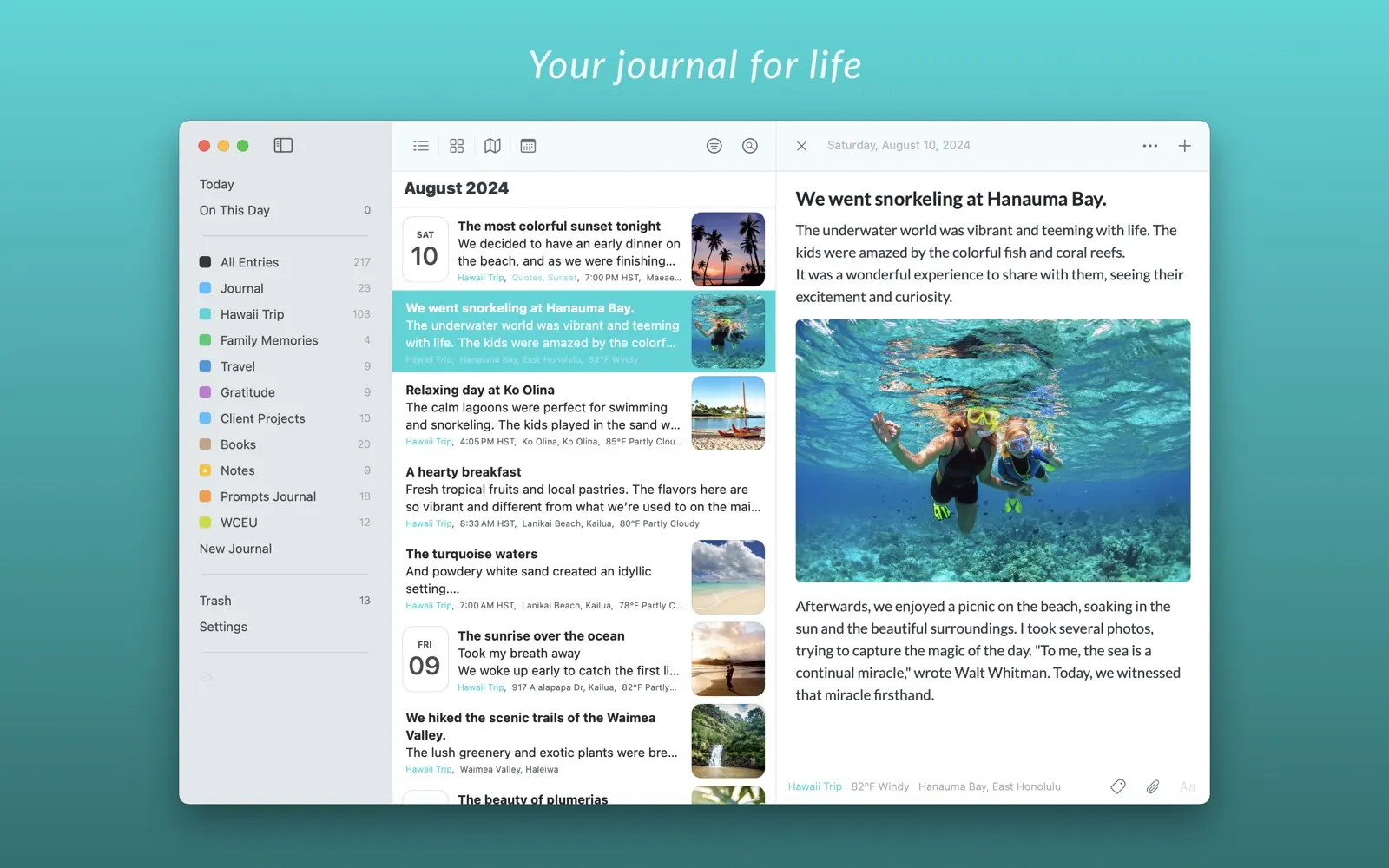
A journal is about as private as data gets. Day One offers end-to-end encryption for journals, so the sync service cannot read your entries. It supports photos, locations and templates, with a free tier and a subscription for sync and extras.
Encrypted notes
For notes that are private but not journal entries, Apple Notes can lock individual notes with your Mac password. Bear Pro can encrypt individual notes too, which is handy if Bear is already your notes app.
Encrypted files to send
When you need to send a sensitive document, put it in an encrypted archive. Keka creates ZIP and 7z archives protected with AES-256 encryption. Send the password through a different channel than the file, such as a phone call or a message app.
See what apps send out
macOS's firewall only watches incoming connections. To see and control outgoing ones, use a network monitor:
- LuLu, from Objective-See, is free and open source. It alerts you when an app tries to connect out, and you allow or block it.
- Little Snitch, from Objective Development, is a paid app with more detailed rules and a live map of connections.
The first few days are noisy, as every app asks for permission. After that, a surprise alert is a useful signal.
A VPN, if you need one
A VPN hides your traffic from the local network and your internet provider, and shifts trust to the VPN company. It is useful on public Wi-Fi and for avoiding tracking by your provider. If you use one, pick a provider with a clear no-logs policy and independent audits; Mullvad, for example, does not require an email address to sign up.
Keep everything updated
Most attacks on Macs use known, already-fixed problems. Turn on automatic updates in System Settings, under General and Software Update, including security responses and system files. Update your apps too; the Mac App Store can do this automatically.
A sensible order
- FileVault on, macOS up to date.
- Bitwarden, and change reused passwords starting with email and banking.
- Review Privacy & Security permissions.
- Turn on the firewall.
- Add Day One, Keka or a network monitor as needed.
More tools are in security and privacy apps and the open-source collection.
FAQ
Is a Mac secure out of the box?
It is in good shape: Gatekeeper checks apps, XProtect scans for known malware, and the system volume is protected. You still need to turn on FileVault if it is not already on, use strong unique passwords, and keep macOS updated.
Do I need antivirus on a Mac?
Most people do not. The built-in protections handle common malware. Careful downloading and prompt updates matter more than a third-party scanner.
Is Bitwarden safe?
Bitwarden is open source, encrypts your vault on your device before syncing, and publishes third-party security audits. Your master password never leaves your device.
What is the difference between FileVault and Advanced Data Protection?
FileVault encrypts the disk inside your Mac. Advanced Data Protection encrypts your data in iCloud so that Apple cannot read it. They protect against different risks, and you can use both.