How to keep your Mac awake (with and without an app)
Stop your Mac sleeping during downloads, builds and presentations: System Settings, the caffeinate command, and apps like Amphetamine and Lungo.

Written by Mac App Index Editorial



To keep a Mac awake for a while, the quickest options are a menu bar app like Amphetamine (free) or Lungo, or the built-in caffeinate command in Terminal. To change the default for good, adjust the sleep settings in System Settings. Each method suits a different situation, so here is when to use which.
How we picked: we tested each method on a MacBook and a Mac mini, on battery and on power, during downloads, long builds and screen sharing.
Option 1: change the sleep settings
If you want your Mac to stay awake longer every day, change the defaults instead of using an app.
On a MacBook:
- Open System Settings, then Lock Screen.
- Set "Turn display off on battery when inactive" and "Turn display off on power adapter when inactive" to longer times, or Never for the power adapter.
- In Battery, open Options and turn on "Prevent automatic sleeping on power adapter when the display is off" if you want the Mac to keep working with the screen dark.
On a desktop Mac, the display timeout is in Lock Screen, and the option to prevent sleep while the display is off is in Energy.
This is the right fix for a Mac mini that acts as a home server. For a laptop, a permanent change wastes battery, so a temporary switch is usually better.
Option 2: the caffeinate command
macOS includes a command-line tool called caffeinate. It keeps the Mac awake for as long as it runs. Open Terminal and try:
caffeinate -d
That keeps the display on until you press Control-C. Some useful variations:
caffeinate -iprevents idle sleep but lets the display turn off.caffeinate -t 3600stays awake for 3,600 seconds, then stops.caffeinate -i make buildkeeps the Mac awake until that command finishes, then lets it sleep normally.caffeinate -sprevents system sleep, but only while the Mac is on power.
To see what is currently keeping your Mac awake, run pmset -g assertions. It lists every app holding a sleep assertion, which helps when a Mac refuses to sleep.
Option 3: a menu bar app
If you do this often, a menu bar app is faster than Terminal.
Amphetamine
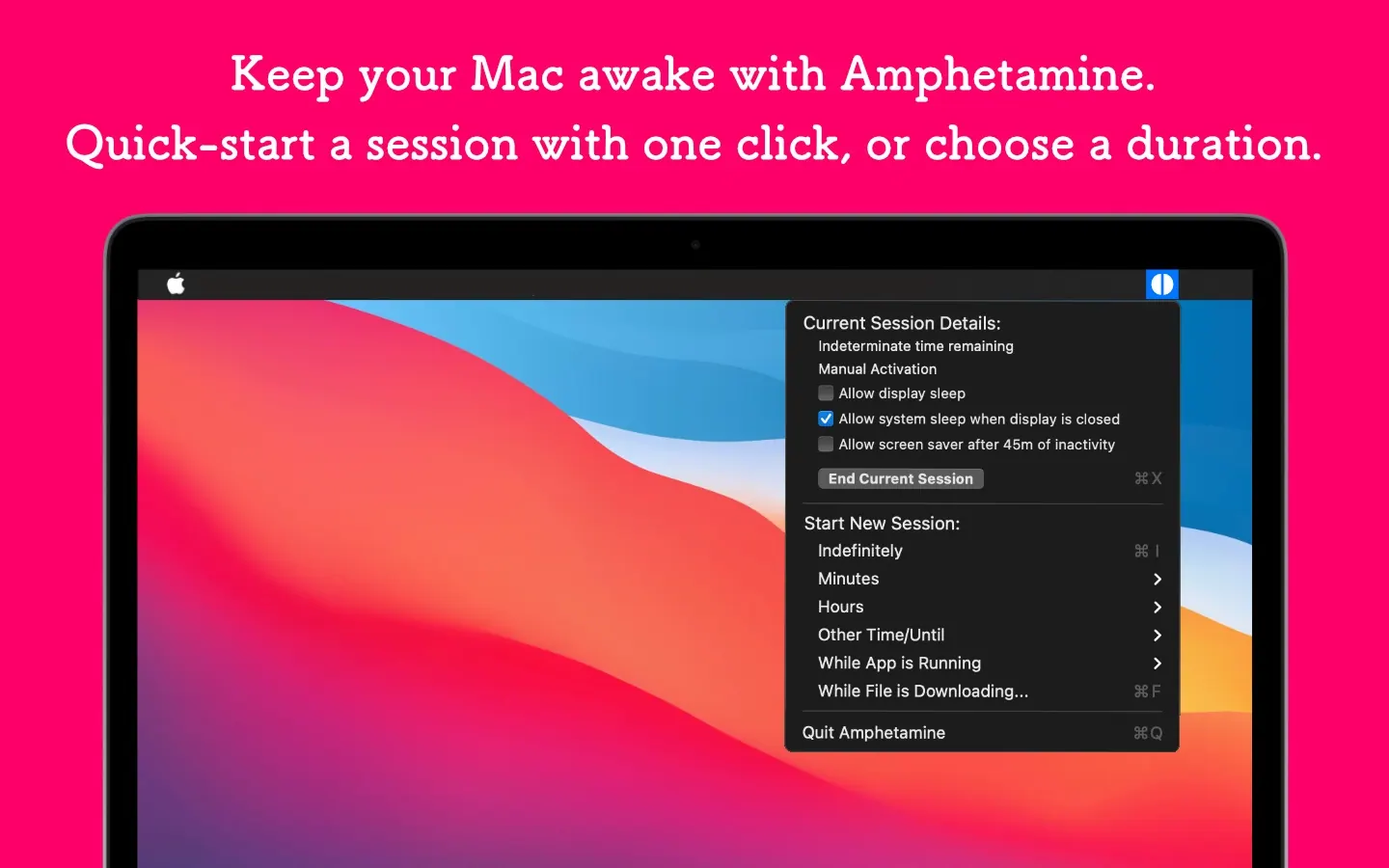
Amphetamine is free, has no ads, and is the most flexible option. You can start a session for a set time or indefinitely, and set triggers that keep the Mac awake automatically:
- while a specific app is running,
- while a file download is in progress,
- while an external display is connected,
- during certain hours.
You can also choose whether the display may sleep during a session, and whether the Mac may sleep when a MacBook's lid is closed.
Lungo
Lungo by Sindre Sorhus is the minimal option: click the icon to toggle, pick a preset duration, or use a keyboard shortcut. It does fewer things than Amphetamine and is easier to understand at a glance. It is a one-time purchase and needs a recent version of macOS.
Raycast
If you already use Raycast, community extensions in the Raycast Store wrap caffeinate so you can toggle it from the launcher without another menu bar icon.
Keeping a MacBook awake with the lid closed
By default, a MacBook sleeps when you close the lid. The supported way to use it closed is clamshell mode: connect it to power, an external display, and a keyboard and mouse, and it keeps running with the lid shut.
Keeping a closed MacBook awake without a display is possible with some apps, but be careful with heat. A MacBook in a bag with the lid closed and the processor busy can get very warm.
When your Mac sleeps anyway
If the Mac still sleeps, check three things. First, run pmset -g assertions to confirm something is holding it awake. Second, on battery, Low Power Mode and very low charge can override some settings. Third, a closed lid without an external display usually wins over any app.
Which method should you use?
- A one-off download or a presentation: Amphetamine or Lungo.
- A long build or script: caffeinate in front of the command.
- A Mac mini that should always be on: change the Energy settings.
- A laptop at a desk with a monitor: clamshell mode.
More small helpers like these are in the menu bar collection and free menu bar apps.
FAQ
Is it bad to keep a Mac awake all the time?
For a desktop Mac, not really, though it uses more power. For a MacBook, keeping it awake on battery drains it faster, and keeping it busy with the lid closed can make it hot. Use a timed session instead of leaving it on indefinitely.
Why does my Mac still go to sleep with Amphetamine running?
Check that a session is actually active (the icon changes) and whether you allowed the display to sleep. If the lid is closed and no external display is connected, the MacBook may sleep regardless of the app's settings unless you enabled the closed-display option.
How do I find out what is preventing my Mac from sleeping?
Run pmset -g assertions in Terminal. It lists processes that are holding the Mac awake, such as a video player, a backup, or a caffeinate command you forgot about.
Does caffeinate need to be installed?
No. It ships with macOS and works in Terminal on every recent version.