How to hide menu bar icons on a Mac
Clean up a crowded Mac menu bar: built-in settings in macOS Tahoe, Command-drag, and free apps like Hidden Bar and Ice for icons hidden by the notch.

Written by Mac App Index Editorial



You can hide menu bar icons on a Mac in three ways: switch off third-party items in System Settings, Command-drag icons to rearrange or remove them, or install a free menu bar manager like Hidden Bar or Ice to tuck them behind a single click. On a MacBook with a notch, the third option is often the only way to see everything again.
How we picked: we tried each method on a 14-inch MacBook Pro with a notch and about twenty menu bar apps installed, which is roughly where things start to break.
Why icons go missing
macOS never shrinks or wraps menu bar items. When an app with many menus is in front, its menus on the left and the icons on the right run out of room. On a MacBook with a notch, the overflow ends up hidden behind it, with no warning and no way to reach those icons. Hiding the icons you rarely click is the fix.
Method 1: System Settings (macOS Tahoe)
macOS Tahoe added a Menu Bar section to System Settings. At the bottom, under Allow in the Menu Bar, every third-party app that has asked for a menu bar icon is listed with a switch.
- Open System Settings, then Menu Bar.
- Scroll to Allow in the Menu Bar.
- Turn off the apps whose icons you do not want to see.
The app keeps running; only its icon goes away. To get it back, turn the switch on again, and quit and reopen the app if the icon does not reappear.
The same pane also controls Apple's own items, such as Wi-Fi, Bluetooth and battery.
The limit: it is on or off. You cannot keep an icon hidden but reachable with one click.
Method 2: Command-drag
Hold Command and drag any menu bar icon left or right to reorder it. Put the icons you use most closest to the clock, where they are least likely to be pushed behind the notch.
Holding Command and dragging a system icon down out of the menu bar removes it. This works on Apple's items; most third-party apps need to be hidden through their own settings or Method 1.
Method 3: a menu bar manager
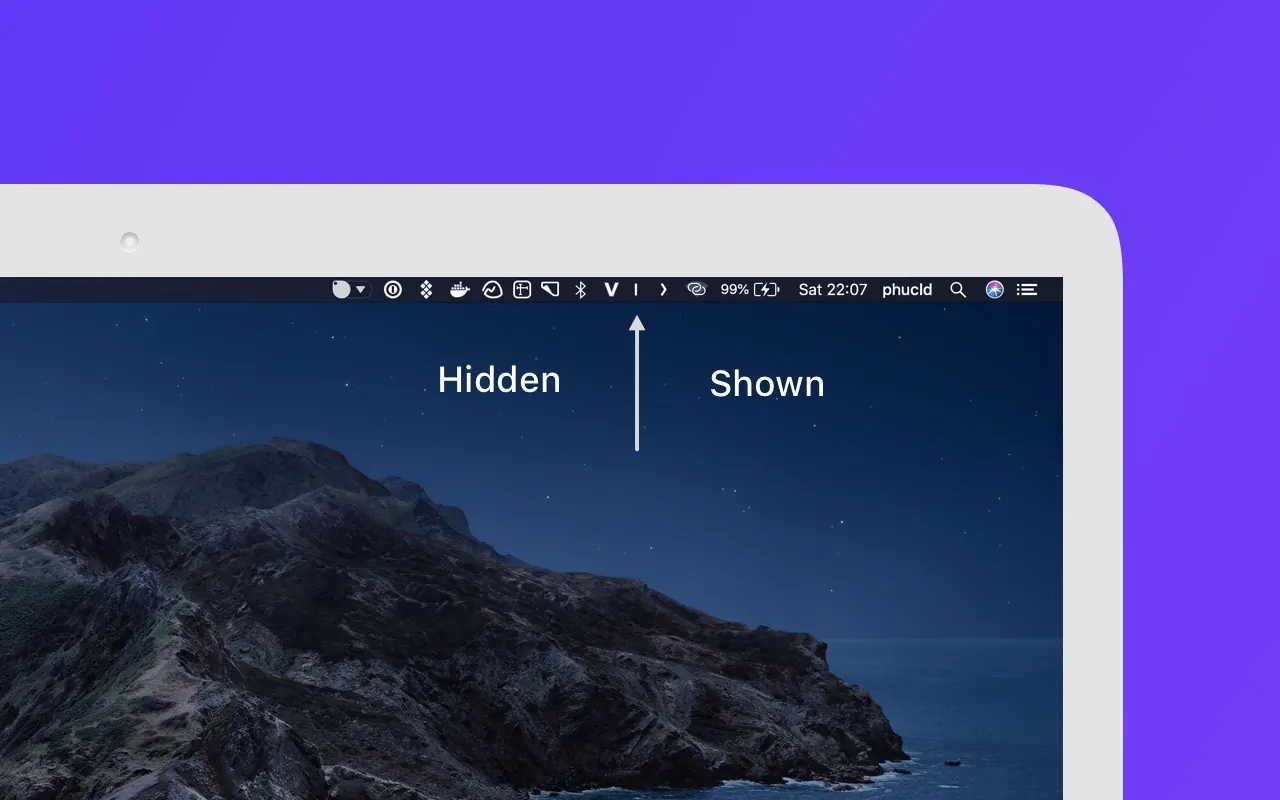
A menu bar manager hides icons behind a separator that you click to reveal them. Both of these are free and open source.
Hidden Bar
Hidden Bar adds an arrow to the menu bar. Command-drag the icons you want hidden to the left of the arrow, then click the arrow to collapse them. You can set it to re-hide them automatically after a few seconds. It is simple and has very few settings.
Ice
Ice offers more control. It has sections for always-visible, hidden and always-hidden items, can show hidden items in a separate bar below the menu bar (useful with the notch), and includes a search panel for everything you tucked away.
Ice's own development has slowed. A community fork called Thaw continues from the same code, if you need fixes for newer macOS versions.
Paid options
Bartender is the best-known paid menu bar manager and has the most features, such as showing an icon only when it changes. It was sold to a new owner in 2024, which some users were unhappy to discover only after an update. It is still sold and maintained.
Make icons earn their place
Before hiding things, consider removing them. A few ideas:
- Replace the clock, calendar and world clock with one app. Dato shows upcoming events and several time zones from a single item.
- Turn off menu bar icons for apps you open from the Dock anyway. Most apps have a setting for this.
- Remove Apple's items you never click, like Spotlight if you use a launcher such as Raycast.
Before an update or a new macOS version
Menu bar managers rely on system behaviour that Apple sometimes changes. After a major macOS update, icons may reappear or the separator may move. Check for an update to your menu bar manager before you file a bug, and keep a note of which icons you hid so you can restore the setup quickly.
Our recommendation
Start with the built-in Allow in the Menu Bar list and switch off anything you never click. If you still run out of space, install Hidden Bar for the simplest fix or Ice if you want a second bar and search.
See more in menu bar apps, menu bar apps you pay for once and alternatives to Hidden Bar.
FAQ
How do I see menu bar icons hidden behind the notch?
Hide or remove icons you rarely use so the others fit, or use Ice to show hidden items in a separate bar below the menu bar. Quitting the app in front also helps, because its menus take less space.
Can I hide menu bar icons without installing anything?
Yes. In macOS Tahoe, go to System Settings, then Menu Bar, and switch off apps under Allow in the Menu Bar. On any version, you can Command-drag Apple's icons out of the menu bar.
Is Hidden Bar safe?
Yes. It is open source, from Dwarves Foundation, and available on the Mac App Store.
What happened to Bartender?
Bartender was sold to a new owner in 2024. It is still available as a paid app. Ice and Hidden Bar are the most common free alternatives.