Window management on Mac: Magnet vs Rectangle vs tiling
How macOS window tiling compares with Magnet, Rectangle and Raycast, and which window manager to use for your screen and habits.

Written by Mac App Index Editorial


If you just want windows side by side, the tiling built into macOS since Sequoia is enough. If you want thirds, more keyboard shortcuts or support for older macOS versions, install Rectangle (free, open source) or Magnet ($4.99). If you already use Raycast, its window commands may cover you without another app.
How we picked: we used each option on a 14-inch MacBook Pro alone and with an external display, and judged them on shortcuts, snap areas, multi-display behaviour and price.
Quick comparison
| Option | Price | Thirds | Custom shortcuts | Open source |
|---|---|---|---|---|
| macOS tiling (Sequoia and later) | Built in | No | Through System Settings | No |
| Rectangle | Free | Yes | Yes | Yes |
| Magnet | $4.99 one-time | Yes | Yes | No |
| Raycast | Free, Pro optional | Yes | Yes | No |
Built-in tiling
macOS Sequoia added proper window tiling. Drag a window to the left or right edge for half the screen, or to a corner for a quarter. Hold Option while dragging and the drop zones appear straight away. The Window menu has Move & Resize options with keyboard shortcuts using the Globe (Fn) and Control keys plus the arrow keys.
What it lacks: thirds, a centre-and-resize option with a size you choose, and some fine control over gaps between windows. You can turn off the margins between tiled windows in Desktop & Dock settings.
For many people that is all they need. Try it for a week before installing anything.
Rectangle
Rectangle is the free, open-source default for keyboard-driven window management. It ships with shortcuts for halves, thirds, two-thirds, quarters, maximise, centre, and moving a window to the next display. Snap areas work when you drag a window to an edge, just like Magnet.
Its strengths are breadth and price. Every shortcut can be changed, there are settings for gaps, and it runs on older macOS versions that do not have built-in tiling. Install it from its website or with Homebrew.
There is a paid Rectangle Pro from the same developer with extra features, but the free version is complete.
Magnet
Magnet does the same core job: snap areas on every screen edge, keyboard shortcuts for halves, thirds and quarters, and support for multiple displays. It is sold on the Mac App Store for $4.99, which suits people who prefer App Store purchases and updates.
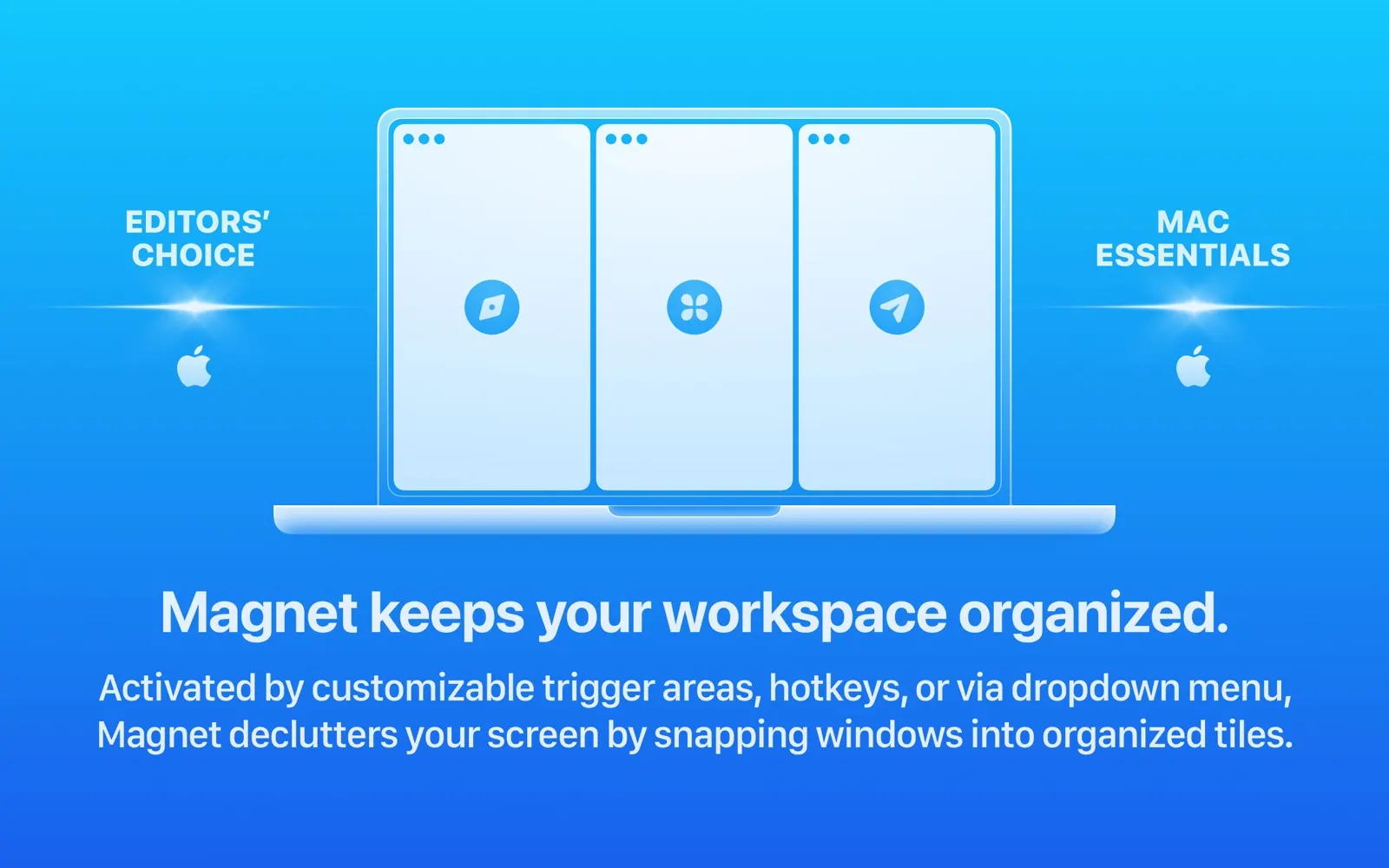
In daily use, Magnet and Rectangle feel very similar. Choose Rectangle if you want it free and open source; choose Magnet if you like the App Store route or already own it.
Raycast
Raycast is a launcher with window management built in. You can run "Left Half" or "Next Display" from the command bar, or assign each command its own hotkey. It does not do drag-to-edge snapping the way Rectangle and Magnet do, so pair it with the built-in tiling if you want both.
If you already live in Raycast, adding a separate window manager often just creates shortcut clashes.
Which one should you use?
- You mostly use the trackpad and want halves and quarters: built-in tiling.
- You use keyboard shortcuts and want thirds or more control: Rectangle.
- You prefer the Mac App Store and want something that just works: Magnet.
- You already use Raycast for everything: its window commands.
Whatever you pick, use only one tool for shortcuts. Two window managers listening for the same keys cause odd behaviour.
Common problems and fixes
A few issues come up often with any window manager:
- Shortcuts do nothing. Window managers need Accessibility permission. Check System Settings, then Privacy & Security, then Accessibility, and make sure the app is switched on. After an update you may need to switch it off and on again.
- Some apps refuse to resize. A few apps set a minimum window size, so a third of a small screen may not fit. The window manager will place it as close as it can.
- Windows land on the wrong display. Check which display is set as the main one in Displays settings, and use the "next display" shortcut rather than dragging.
Tips that help with any of them
- Learn four shortcuts first: left half, right half, maximise and next display. They cover most of the day.
- On a laptop with an external monitor, set the larger display as the main one and use "next display" to move windows across.
- Stage Manager and window managers can work together, but if windows jump around unexpectedly, turn Stage Manager off and see if it settles.
- Clear the menu bar too. A tidy screen is easier when the top of it is not crowded; Ice and Hidden Bar help there.
More options are in productivity apps and alternatives to Magnet.
FAQ
Does macOS have window snapping built in?
Yes, since macOS Sequoia. Drag a window to a screen edge or corner, or hold Option while dragging to see the zones. Earlier versions need a third-party app.
Is Rectangle better than Magnet?
They are close. Rectangle is free and open source with slightly more settings. Magnet costs $4.99 and is sold through the Mac App Store. Both handle halves, thirds, quarters and multiple displays.
Can I use Rectangle and Raycast together?
You can, but turn off the shortcuts you do not use in one of them so they do not compete for the same keys.
Do window managers work with multiple monitors?
Rectangle, Magnet and Raycast all move windows between displays with a shortcut. Built-in tiling works per display when you drag.